The intelligent compressor, made for vocals and at home on anything. This guide covers every control, what the
readings mean, and how to install and activate PRESS.
Version 1.0.0
Mac and Windows
AU · VST3 · AAX
On this page
What PRESS is
magic.PRESS is a compressor with five characters, CLEAN, FET, OPTO, TUBE and DUO, and the controls you'd expect:
threshold, ratio, attack and release. On top of that it's built around three ideas:
AUTO. The threshold moves with the singer, so a quiet verse and a loud chorus get the same amount of compression. Release and makeup gain can follow along too.
HIT POCKET. Live readings of your vocal's dynamics, PEAKS and WORDS, against the pocket 3,054 hit vocals sit in. It's a guide only: it never changes the sound.
SNAP. One click and PRESS sets THRESHOLD to land your vocal in that pocket, then holds it there.
Switch AUTO and HIT POCKET off and it's a straightforward compressor for anything: drums, bass, buses.
Quick start
Put PRESS on your vocal. A good place is after cleanup (noise removal, tuning, corrective EQ) and before reverb and delay. In your DAW it's listed under MBM Audio.
Play the vocal. AUTO and AUTO GAIN are on, so PRESS is already working, and it puts back the level it takes: bypass compares the compression, not the loudness.
Watch the HIT POCKET drawer at the bottom left of the display. After about 5 seconds of singing, PEAKS shows where your vocal sits against the pocket. WORDS follows a few seconds later.
Press SNAP. PRESS listens to about 9 seconds of singing (less if the song has already played), sets THRESHOLD so your peaks and your words land in the pocket, and holds it there. THRESHOLD turns purple while SNAP holds it.
Pick a TYPE for the sound. CLEAN is the most transparent; FET, OPTO, TUBE and DUO each add their own character. Press SNAP again after a big change.
Finish by ear. COLOR adds the type's saturation, MIX blends the dry vocal back in, OUT sets the final level.
The face at a glance
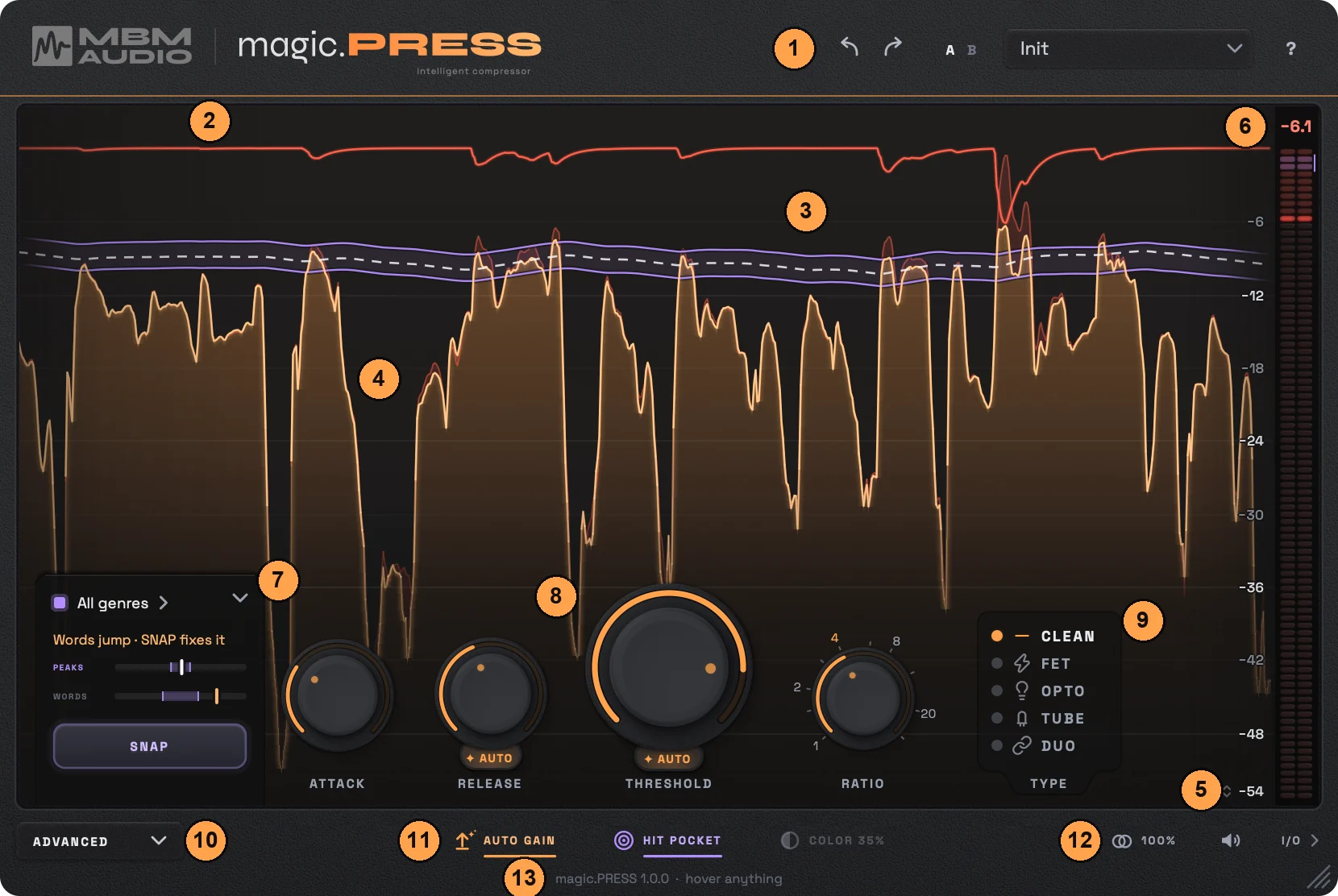
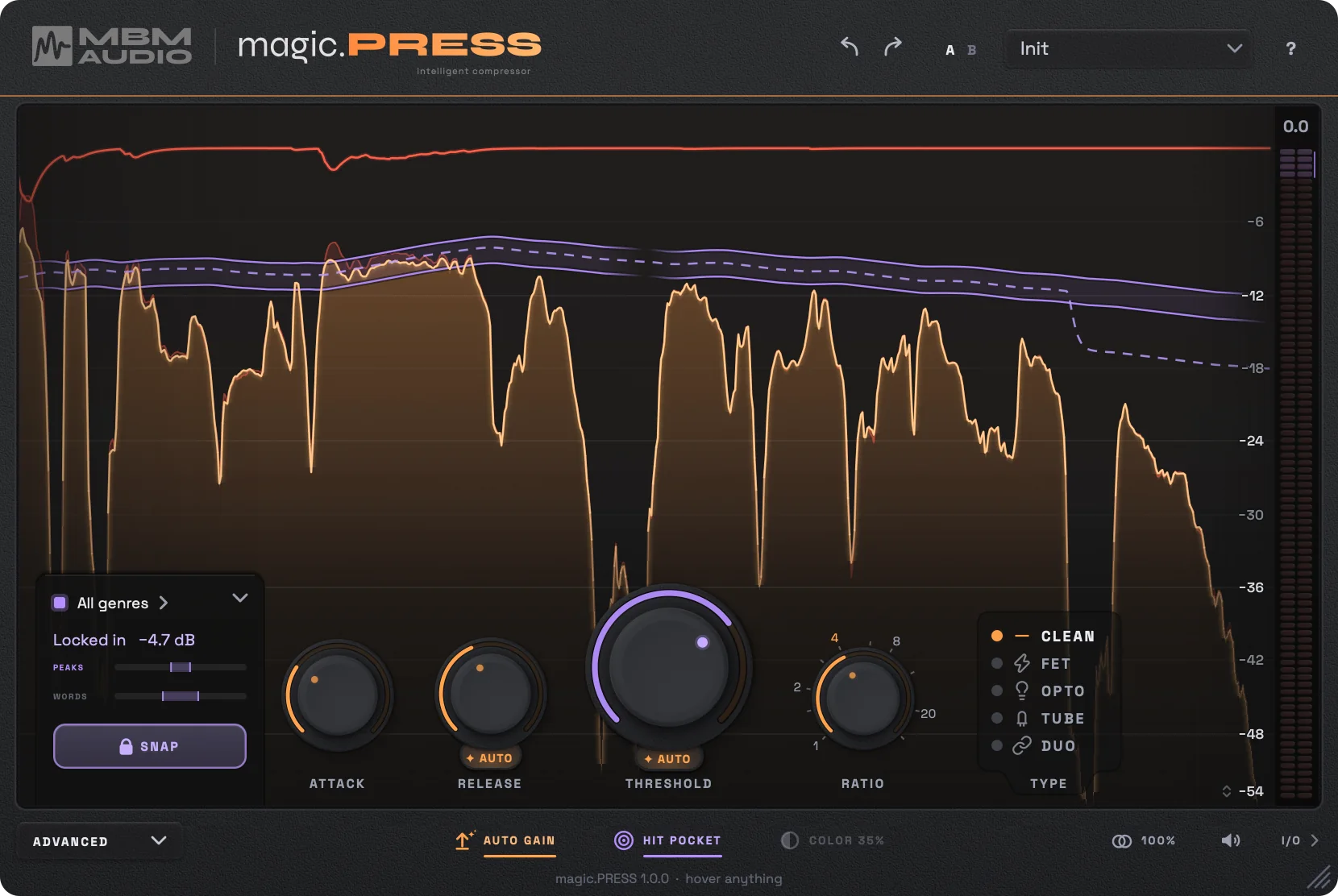
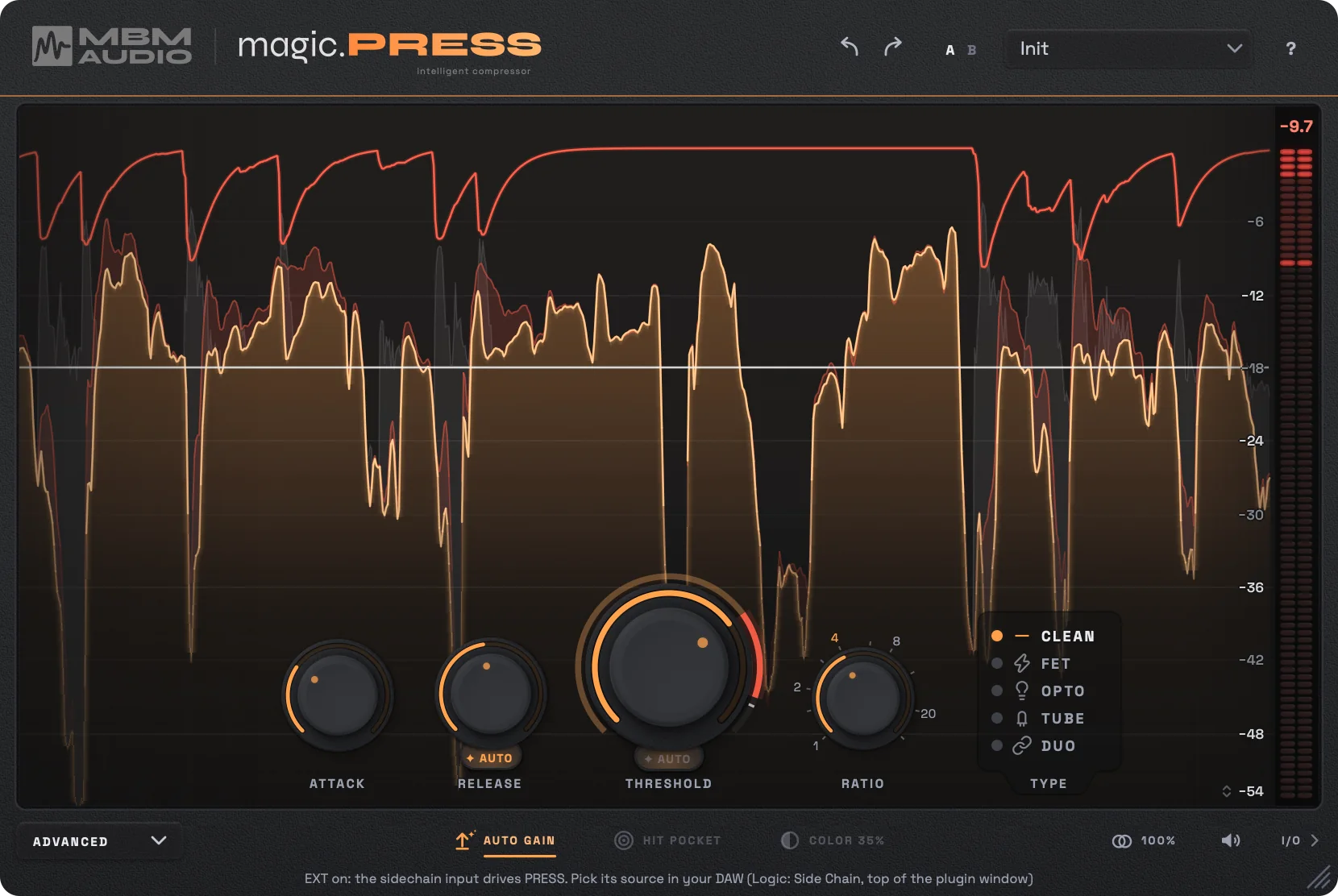
1Header. Undo and redo, A/B, the preset menu, and ? for help, text size and your license.
2The red line. Gain reduction: how much PRESS is turning the vocal down right now.
3The purple lines and the dashed line. The purple lines are the hit pocket, where a hit record's peaks would sit for your vocal. The white dashed line is THRESHOLD: dashed while AUTO moves it, solid when it's fixed, purple while SNAP holds it.
4Your vocal. About six seconds of it, scrolling right to left. Amber is the vocal coming out of PRESS; the light red veil above it is what PRESS pressed off.
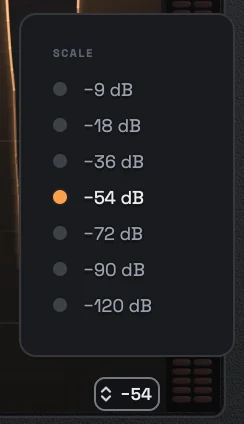
5The scale. Levels in dBFS. Click the number at the bottom to choose how far down the display reads.
6The gain reduction meter. The number on top is the most PRESS took off in the last moment. The purple window shows how much reduction lands this vocal in the pocket.
7The HIT POCKET drawer. What you aim at, the PEAKS and WORDS readings, and SNAP.
8The knobs. ATTACK, RELEASE, THRESHOLD and RATIO. The AUTO tabs under RELEASE and THRESHOLD switch automatic mode on and off.
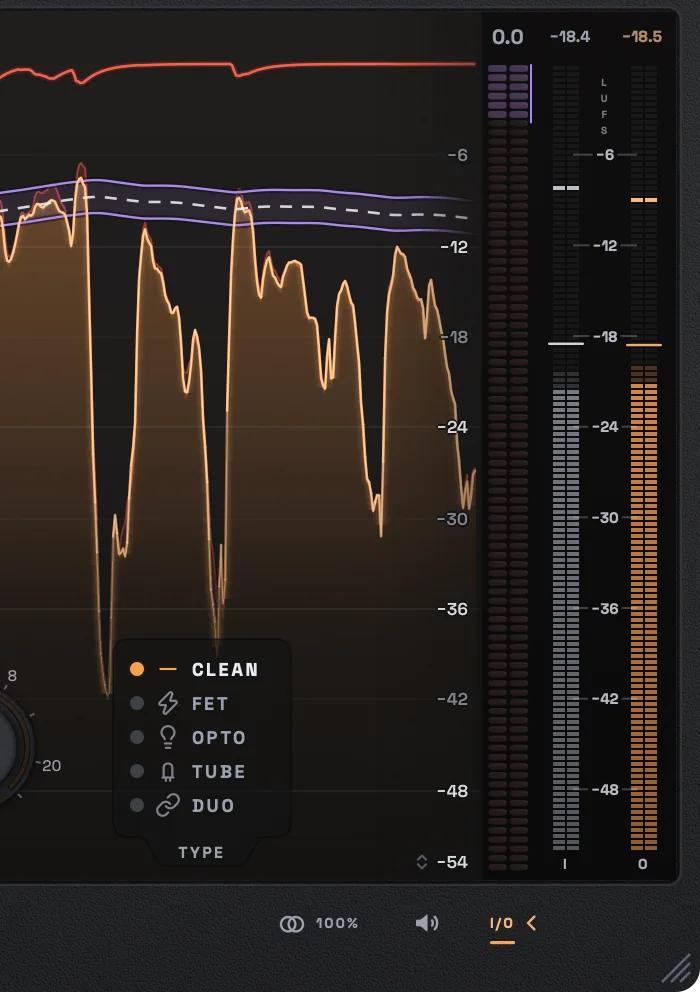
9TYPE. The five compressors: CLEAN, FET, OPTO, TUBE and DUO.
10ADVANCED. Opens the drawer of set-once controls: timing, how AUTO follows, lookahead, the sidechain, knee and GR limit.
11AUTO GAIN, HIT POCKET and COLOR. Automatic makeup gain, the hit pocket, and how much saturation the type adds.
12MIX, OUT and I/O. Parallel blend, the output level, and the input and output meters.
13The help line. Hover over anything and this line says what it does.
Size and text
Drag the grip in the bottom right corner to resize PRESS (it keeps its shape), double-click it for 100%, or right-click it for 80% to 200%. PRESS remembers the size. For larger text, open ? and set Text size to Large.
The main controls
Control
What it does
Range
Default
THRESHOLD
Where compression starts, in dBFS. With AUTO on, the threshold rides a set distance over the singing and moves with the vocal: the knob shows where it is right now, and turning it sets how far over the singing it rides. With AUTO off, it stays where you put it.
-60 to 0 dBFS
AUTO on, 12 dB over the singing (-18 dBFS with AUTO off)
RATIO
How hard PRESS pushes back once the voice crosses the threshold. 2:1 is gentle, 4:1 the classic vocal setting, 8:1 and up the aggressive sound.
1:1 to 30:1
4:1
ATTACK
How fast PRESS grabs a peak. Faster is tighter; slower lets the front of each word through.
0.02 ms to 200 ms
0.30 ms
RELEASE
How fast PRESS lets go. With AUTO on, the knob sets the fastest it lets go, and the longer the vocal keeps pressing, the slower it releases, so held phrases stay steady.
5 ms to 4 s
80 ms, AUTO on
TYPE
The compressor's character. Switching moves attack, release, ratio, knee and attack shape to the new type's classic values, unless you've changed them.
CLEAN, FET, OPTO, TUBE, DUO
CLEAN
Using the knobs
Drag up and down (or sideways) to turn a knob. Hold Shift for moves four times finer. The scroll wheel works too.
Double-click a knob to reset it.
Hover over a knob or drag it and its value shows above it. The display dims everything except what that knob changes.
Click the AUTO tab under RELEASE or THRESHOLD to switch AUTO on or off. The threshold never jumps when you do.
You can also drag the THRESHOLD line on the display. Hover over it to read it, hold Shift for finer moves, double-click to reset.
The five types
Pick one from the TYPE list beside the knobs. Each type has its own detector, timing and color, so it's a different compressor, not a preset. The knob caps change to match.
CLEAN Transparent control
A fast, precise compressor that holds the vocal steady without changing its sound. The one to start with, and the one for anything you only want controlled. CLEAN adds no color, so COLOR switches off while it's selected.
Classic settings: 0.3 ms attack, 80 ms release, 4:1, 6 dB knee
FET Fast and forward
Grabs peaks almost instantly and listens to its own output, like classic FET compressors. Puts the vocal right in front, with bite on every word. Its COLOR adds odd harmonics: edge and presence.
Classic settings: 0.06 ms attack, 80 ms release, 4:1, hard knee
OPTO Slow and smooth
Eases in, and the longer it works, the slower it lets go, like an optical cell. It listens a little more to the top end. Evens out whole phrases instead of single words. Its COLOR is a faint, even warmth.
Classic settings: 10 ms attack, 60 ms release with a slow tail, 3:1, 6 dB knee
TUBE Warm and thick
Its ratio grows as the vocal pushes harder: gentle on quiet lines, firm on loud ones. Its COLOR adds a rounded, second-harmonic warmth.
Classic settings: 12 ms attack, 120 ms release, up to 4:1, 8 dB knee
DUO Two compressors in a row
Stage 1 catches the peaks, stage 2 levels what's left into the pocket. Any two of the four, starting as FET into OPTO.
Classic settings: Each stage starts from its own classic times
AUTO and AUTO GAIN
AUTO threshold
A fixed threshold presses a loud chorus much harder than a quiet verse. With AUTO on, PRESS follows the level of the
singing and keeps the threshold the same distance over it, so every phrase gets the same compression, loud or soft.
The THRESHOLD knob moves with the vocal to show where the threshold is right now; turn it, and AUTO follows from
wherever you put it.
It's built to follow a singer: gaps and breaths don't drag it down, the first line after a silence isn't crushed, and room tone before the vocal doesn't fool it.
How closely it follows is set in ADVANCED, under DETECTION:
Word
Every word gets the same squeeze. Follows within about 0.4 s.
Phrase
The default. Every phrase gets the same squeeze, its loudest words a little more. About 2 s.
Section
It barely moves, so loud lines get pressed harder and quiet ones less. About 8 s.
AUTO keeps the difference between loud and quiet phrases, because that's its job. So a very dynamic vocal may not land
fully in the pocket with AUTO on, and SNAP will offer SNAP FIXED for that. AUTO is also tuned to how a voice moves:
on drums, bass or a bus, switch it off and set THRESHOLD by hand.
AUTO release
The RELEASE knob sets the fastest PRESS lets go. With AUTO on, a lone peak lets go at that time, and the longer the
vocal keeps pressing, the slower it releases (up to five times the knob's time), so held phrases stay steady instead
of pumping. The knob moves to show the release it's using right now. With AUTO off, it's always the knob's time.
AUTO GAIN
Puts back the level PRESS takes, so switching PRESS on never just makes the vocal louder, and bypass compares fairly.
It measures the loudness of the singing going in and coming out and matches them, learning in the first seconds of
playback and adjusting gently from there. Change a setting and it learns again, keeping its current level meanwhile.
What it has learned is saved with your session.
AUTO GAIN is on the bottom bar, and also inside OUT.
HIT POCKET
Hit vocals are compressed into a surprisingly narrow range. PRESS measured 3,054 of them: their peaks stand about
16.3 dB over the body of the voice, give or take about a dB, and their words sit evenly next to each other. That range
is the pocket, and HIT POCKET shows you where your vocal sits against it, live.
It's a guide only. It never turns a knob and never changes the sound. SNAP is what moves THRESHOLD, and only when you press it.
The readings
PEAKS: how far your peaks stand over the body of your voice, measured after PRESS. It shows after about 5 seconds of singing.
WORDS: how evenly your words sit next to each other (lower is more even). It shows a few seconds after PEAKS.
Each row is a thin gauge: the pocket is the band, and the mark is your vocal through PRESS, white inside the band and amber outside it. Hover over a row to see its numbers.
The readings start fresh every time you press play, and after any change to the dynamics, so they always describe what you're hearing now.
On the display, the purple lines show where a hit's peaks would sit for your vocal. Click PEAKS or WORDS in the drawer to switch between the peaks lane and a words lane, or click the one showing to clear it.
Choosing your pocket
Click the target at the top of the drawer (All genres to start) to open the picker. Aim for the hits of a genre
(Pop, Hip-hop, R&B, Rock, Country, Latin, Electronic, Alternative or Gospel), the #1 hits, an era from the 1990s to
the 2020s, a low, mid or high voice, or one of 176 artists. POCKET WIDTH sets how wide the target is, and Off switches
HIT POCKET off.
What the drawer says
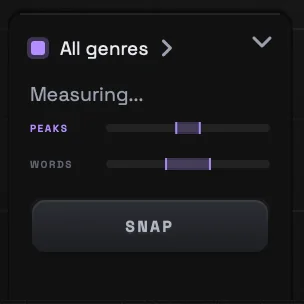
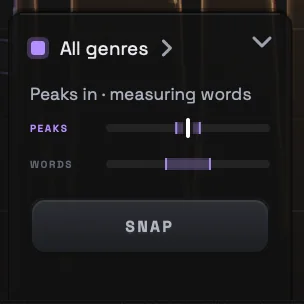
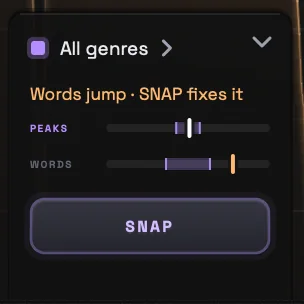
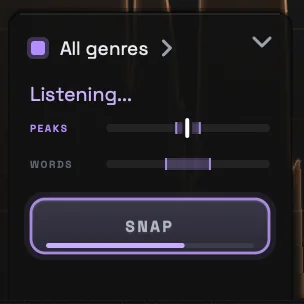
Measuring... PRESS is listening; nothing's measured yet.Peaks in · measuring words The peaks are in the pocket. WORDS is still measuring.Words jump · SNAP fixes it The peaks are in, the words still jump. SNAP breathes purple: press it.Listening... SNAP is gathering the vocal. The key fills as it goes.Locked in SNAP landed it. The number is how far it moved THRESHOLD.Over-pressed More reduction than the pocket needs. Ease off.
The drawer says
What it means
Play the vocal
Nothing is coming in.
Measuring...
Audio is coming in; nothing's measured yet.
Peaks in · measuring words
The peaks are in the pocket; WORDS is still measuring.
In the pocket / Both in the pocket
Your peaks (and your words) sit where hit vocals do.
Words jump · SNAP fixes it
The peaks are in, but the words still jump. Press SNAP.
Words flattened
The words are more even than hits'. Ease off.
2.1 dB over / 1.4 dB under
How far your peaks are from the pocket.
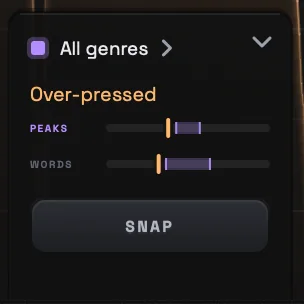
Over-pressed
More reduction than the pocket needs. Past this point more compression only squashes.
Listening...
SNAP is gathering the vocal.
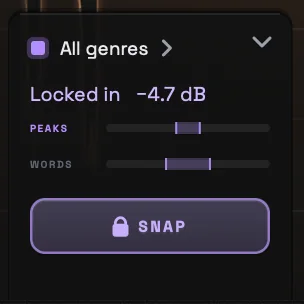
Locked in -4.7 dB
SNAP landed it; the number is how far it moved THRESHOLD.
As close as it goes: 1.2 dB over
SNAP is holding, but this vocal can't reach the pocket with these settings.
With AUTO: 1.8 dB over
AUTO is what's holding it back. SNAP FIXED appears under SNAP.
Click the chevron at the top right of the drawer to tuck it away. A small pull stays at the bottom of the display, with a purple dot while SNAP holds; click it to bring the drawer back.
SNAP
After SNAP: locked in, with THRESHOLD purple while SNAP holds it.
Press SNAP with HIT POCKET on. The key fills as PRESS gathers about 9 seconds of singing, and the drawer says Listening... It draws from everything it has heard since HIT POCKET went on, so if the song has already played, it lands at once.
It works out the gentlest setting that puts your peaks in the pocket and your words in theirs, and takes whichever of the two needs more. It never squashes the peaks more than half a dB under the pocket for the words' sake.
It sets THRESHOLD and holds it. The drawer says Locked in with how far it moved THRESHOLD, the key shows a padlock, and THRESHOLD turns purple. As it hears more of the song it fine-tunes, then settles.
With AUTO on, SNAP sets how far over the singing AUTO rides, so the threshold keeps following the vocal. In DUO, it sets stage 2.
When it can't get all the way
Some vocals can't reach the pocket with the settings you have. Then the drawer says how close it got
(As close as it goes) instead of Locked in. If AUTO is what's holding it back, the drawer says With AUTO and SNAP FIXED appears under SNAP. SNAP FIXED switches AUTO off, keeps the
threshold where AUTO had it so nothing jumps, and SNAPs again with a fixed threshold, which presses loud phrases harder
than quiet ones. The AUTO tab brings AUTO back any time.
When SNAP lets go
You touch THRESHOLD, the knob or its line. Your hand always wins.
You press SNAP again. THRESHOLD stays where SNAP left it.
You switch HIT POCKET off, switch EXT on, or load a preset.
SNAP is saved with your session, and its change is a single undo step. Picking a new era, voice, artist or the #1 hits
while it holds lands the vocal again. After switching genres or changing the pocket width, press SNAP twice (off,
then on) to land on the new target.
Reading the display
Every color on PRESS means one thing: amber is the vocal and anything you set, red is gain reduction, purple is the hits, and white is the threshold and the marks.
The vocal scrolls right to left, about six seconds of it. Amber is the vocal coming out of PRESS; the light red veil above it, traced in red, is what PRESS pressed off.
The red line hanging from the top is the gain reduction, on the same scale.
The white line is THRESHOLD: dashed while AUTO moves it, solid when it's fixed, purple while SNAP holds it. Drag it to set it.
The purple lines are the hit pocket, one ribbon per phrase, riding your vocal as it leaves PRESS.
The words lane, when you pick it in the drawer, marks each word: amber when it jumps out, dim when it sinks, white when it sits right.
With EXT on, the sidechain is drawn faintly behind everything.
The scale
0 dBFS is at the top. Click the number at the bottom to choose the floor: -9 dB shows the compression biggest, -120 dB the whole vocal. It starts at -54 dB, and the meters share the same scale.
When playback stops
The display stops with your DAW, so the last phrases stay up to look at. Hover over the vocal or the red line to read the peak or the gain reduction at that point. The three loudest peaks get labelled, and with your hand on the red line, its three deepest dips.
The gain reduction meter
Beside the display, a red ladder for each channel on the display's scale. The number on top holds the most reduction of
the last moment for a second and a half. With HIT POCKET on, the purple window shows how much reduction on the loud
words lands this vocal in the pocket, and the held light turns purple when you're inside it.
The bottom bar
ADVANCED
Opens the drawer of set-once controls. See ADVANCED. During the trial, the lights beside it count the days left.
AUTO GAIN
Puts back the level PRESS takes. On to start. See AUTO GAIN.
HIT POCKET
The pocket on the display, the drawer and the meter's purple window. A guide only; on to start.
COLOR
How much of the type's character PRESS adds (its saturation), 0 to 100%, 35% to start. Off on CLEAN.
MIX
Blends the dry vocal back in under the compressed one (parallel compression). 100% to start.
OUT
The level after PRESS, -12 to +12 dB, on top of AUTO GAIN. Inside it: AUTO GAIN, and DELTA, which plays only what PRESS takes away (not saved with the session).
I/O
Slides the input and output meters out beside the gain reduction meter.
COLOR, MIX and OUT each open a small well over the bar. Click or drag along it to set the value, double-click for the default, and click anywhere else to close it.
The I/O meters
IN is silver, OUT is amber. The brighter part of each meter is loudness (the last 400 ms), the faint part behind it the peaks. The numbers on top are the loudness of the last 3 seconds of singing, in LUFS. With AUTO GAIN on, IN and OUT meet once it settles.
ADVANCED
Click ADVANCED to open a drawer under the face with four cards. Everything here has a sensible starting point; plenty of vocals never need it.
ATTACK · HOLD · RELEASE
The shape of the gain: it dips at the attack, holds, then recovers. Drag the round handles sideways for the attack and release times, the bar for HOLD (how long PRESS keeps pressing before it lets go, up to 500 ms), and the diamond up or down for how the attack grabs: PUNCH grabs the front of each word, EASE lets it through. Hold Shift for finer moves; double-click a handle to reset it. The amber marks are the type’s classic times.
DETECTION
AUTO FOLLOWS EACH: Word, Phrase or Section (see AUTO). LOOKAHEAD: Off, 1 ms or 2 ms. PRESS hears the vocal early so it catches the front of each word: 1 ms catches about half of a fast edge, 2 ms all of FET’s. It adds that much latency, which your DAW makes up.
SIDECHAIN
What PRESS listens to, as a live spectrum. Switch the filter on with the power button, then drag the edges: raise the low cut so plosives and rumble don’t pump PRESS, lower the high cut so it reacts to the body of the voice, not the esses. It only changes what PRESS listens to, never the sound. EXT switches to the sidechain input.
SHAPE
KNEE: how gently compression starts around the threshold, from hard (0 dB) to 12 dB. Drag it; double-click to reset. GR LIMIT: never take off more than 6, 12 or 18 dB, whatever the vocal does.
Sidechain (EXT)
With EXT on, PRESS listens to its sidechain input instead of the vocal: another track decides when it presses. Use it
to duck a beat or a pad under a vocal, or to tie one track's compression to another's.
Route a track to PRESS's sidechain input. In Logic Pro, pick it from the Side Chain menu at the top of the plugin window. In other DAWs, send the track to the plugin's sidechain or key input: the Key Input menu at the top of the plugin window in Pro Tools, a send to channels 3 and 4 of PRESS's track in Reaper, the sidechain option in the plugin's header in Ableton Live, Cubase and Studio One.
Switch on EXT in ADVANCED, under SIDECHAIN. A small amber dot on EXT tells you a sidechain is already arriving.
Set THRESHOLD by hand. A ring round THRESHOLD shows the sidechain coming in; where it runs past the knob's light it turns red, and that's when the vocal gets pressed.
EXT on: the sidechain is the faint grey shape behind the vocal.
While EXT is on, AUTO threshold and HIT POCKET wait: the drawer hides and SNAP lets go. AUTO GAIN still follows the vocal.
If EXT is on and nothing arrives while the song plays, PRESS tells you: the SIDECHAIN card says No sidechain coming in,
and a note at the top of the display says Sidechain is on, but nothing's coming in. Click Turn off there
to switch EXT off. A sidechain that's really the vocal itself, which is what Logic sends when no source is picked,
doesn't count.
DUO
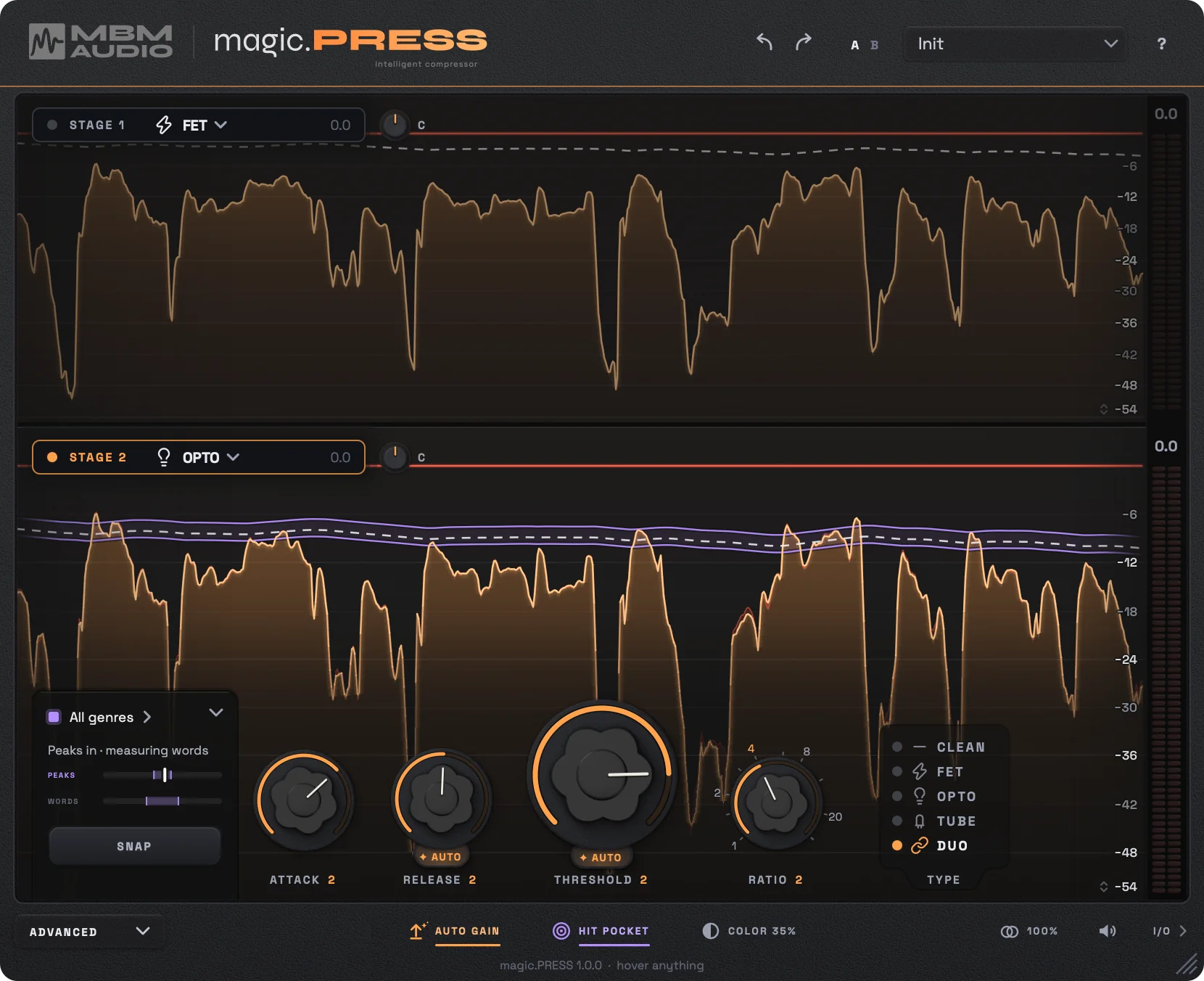
DUO puts two compressors in a row: stage 1 catches the peaks, and stage 2 levels what's left into the pocket. Each can be CLEAN, FET, OPTO or TUBE; it starts as FET into OPTO.
DUO: stage 1 on top, stage 2 below, each with its own lane, compressor and gain reduction.
Point the knobs at a stage by clicking its chip or its lane. The knob labels show a small 1 or 2.
Change a stage's compressor by clicking its name in the chip, or choose Swap to trade the two. Clicking DUO in the TYPE list while it's on opens the same choices.
Stage 1 has its own threshold, ratio, attack, release and attack shape. AUTO, AUTO release, how AUTO follows, the sidechain, lookahead and GR limit are shared. KNEE and HOLD act on stage 2.
Pan: the small knob beside each chip sets where that stage works: C on both channels, L only the left, R only the right. Handy for a lead on one side and its double on the other. Double-click for C.
HIT POCKET and SNAP work on stage 2, and COLOR comes from stage 2's type.
Presets, A/B and undo
Presets
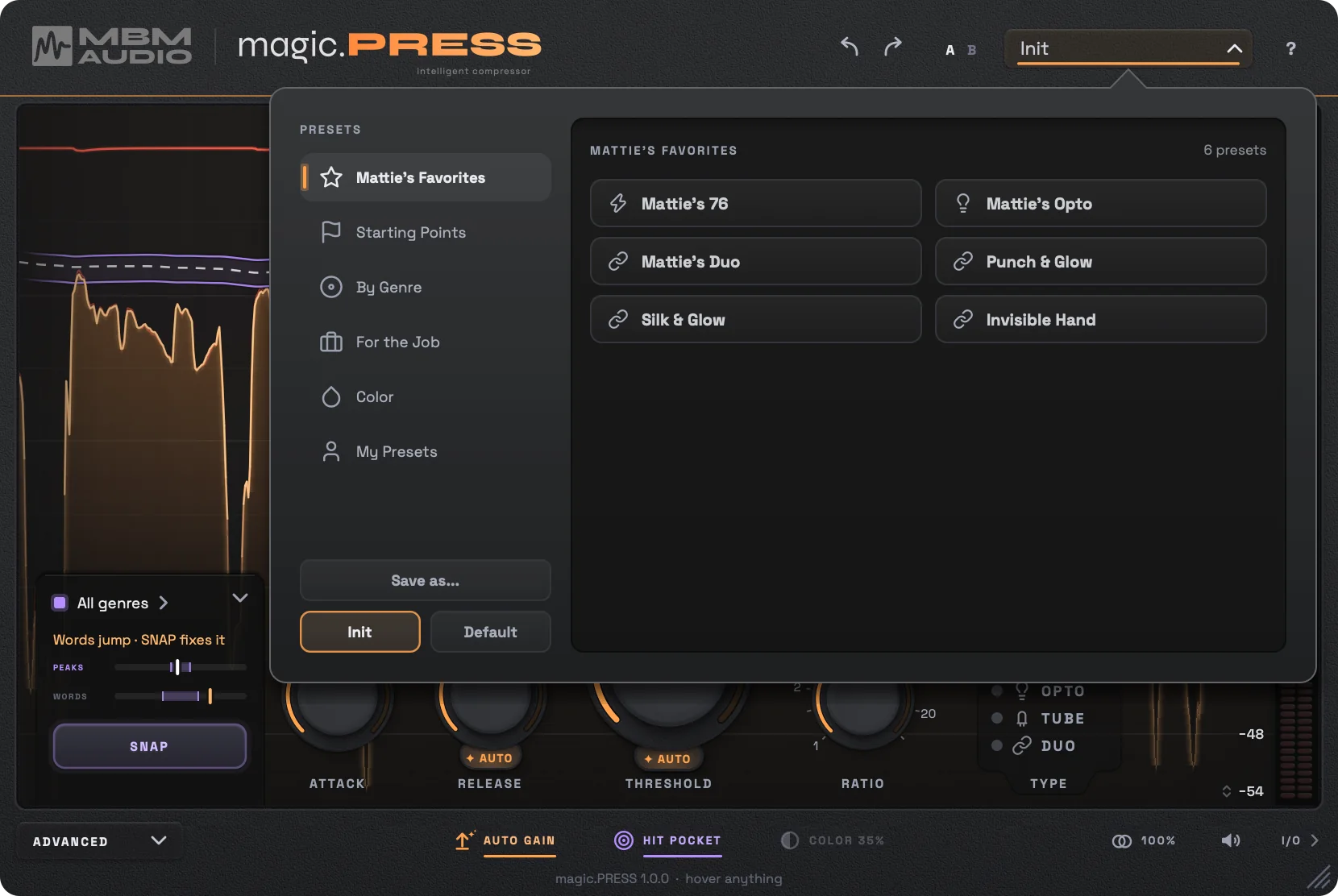
Click the preset name in the header to open the browser, and click a preset to load it. The browser stays open so you
can try a few; click outside it to close. Loading starts from the defaults and applies the preset, so it always sounds
the same, and a small dot by the name means you've changed something since.
Save as... keeps the current settings in My Presets, on this computer; hover over one of yours to delete it. Init puts every control back to its default. Default saves what's set now as the starting point for
every new copy of PRESS you open.
A/B
Two whole settings to compare. B starts as a copy of A: switch to B, change anything, then click to flip between them. Only the one you're on is saved with your session.
Undo and redo
The arrows in the header. Every click and drag is its own step, and loading a preset or a SNAP is one step each.
Recipes
Lead vocal
Start from Init or Clean Control: AUTO, AUTO GAIN and HIT POCKET on.
Play the busiest part of the song and press SNAP.
Try the types by ear and press SNAP again.
Add COLOR to taste on FET, OPTO or TUBE.
Rap vocal
Start from Hip-Hop Lead: FET, following each word.
Press SNAP on a full verse.
If the words still jump, try a DUO with FET first.
Ad-libs, stacks and doubles
Rap Ad-libs sits ad-libs behind the lead.
Backing Stack glues harmonies and stacks.
Tight Doubles evens doubles so they tuck under the lead.
Parallel compression
Start from Parallel Punch: FET at 8:1, pressed hard.
MIX at 40% blends the dry vocal back in.
AUTO GAIN keeps the blend level-matched.
Drums, bass and buses
Switch AUTO off (the tab under THRESHOLD) and HIT POCKET off.
Set THRESHOLD by hand.
CLEAN for invisible control, FET for punch.
A 10 ms ATTACK lets the hit through before PRESS clamps down.
Color without compression
Harmonics Only (TUBE) or Harmonics Only, Odd (FET) set the ratio to 1:1.
You get the type’s harmonics and none of its compression.
Spoken word
Start from Podcast Voice: CLEAN at 3:1, following each section.
Turn HIT POCKET off; its pocket comes from songs.
Ducking with a sidechain
Put PRESS on the music or the beat.
Route the vocal to its sidechain input and switch on EXT.
Set THRESHOLD so the music dips under the vocal.
Install and activate
Install
Mac: run the installer. It puts the AU, VST3 and AAX versions (for Intel and Apple silicon) in your Mac's plugin folders and asks for your password. If you had older copies in your own Library's plugin folder, it removes them so your DAW finds only one.
Windows: run the installer. It installs the VST3 and AAX versions (64-bit) and needs admin rights.
Open your DAW, or restart it if it was open. PRESS is under MBM Audio. Not in your list? Rescan your plugins in your DAW's settings. In FL Studio: Options, Manage plugins, Find installed plugins, then click the star next to magic.PRESS.
Start the free trial
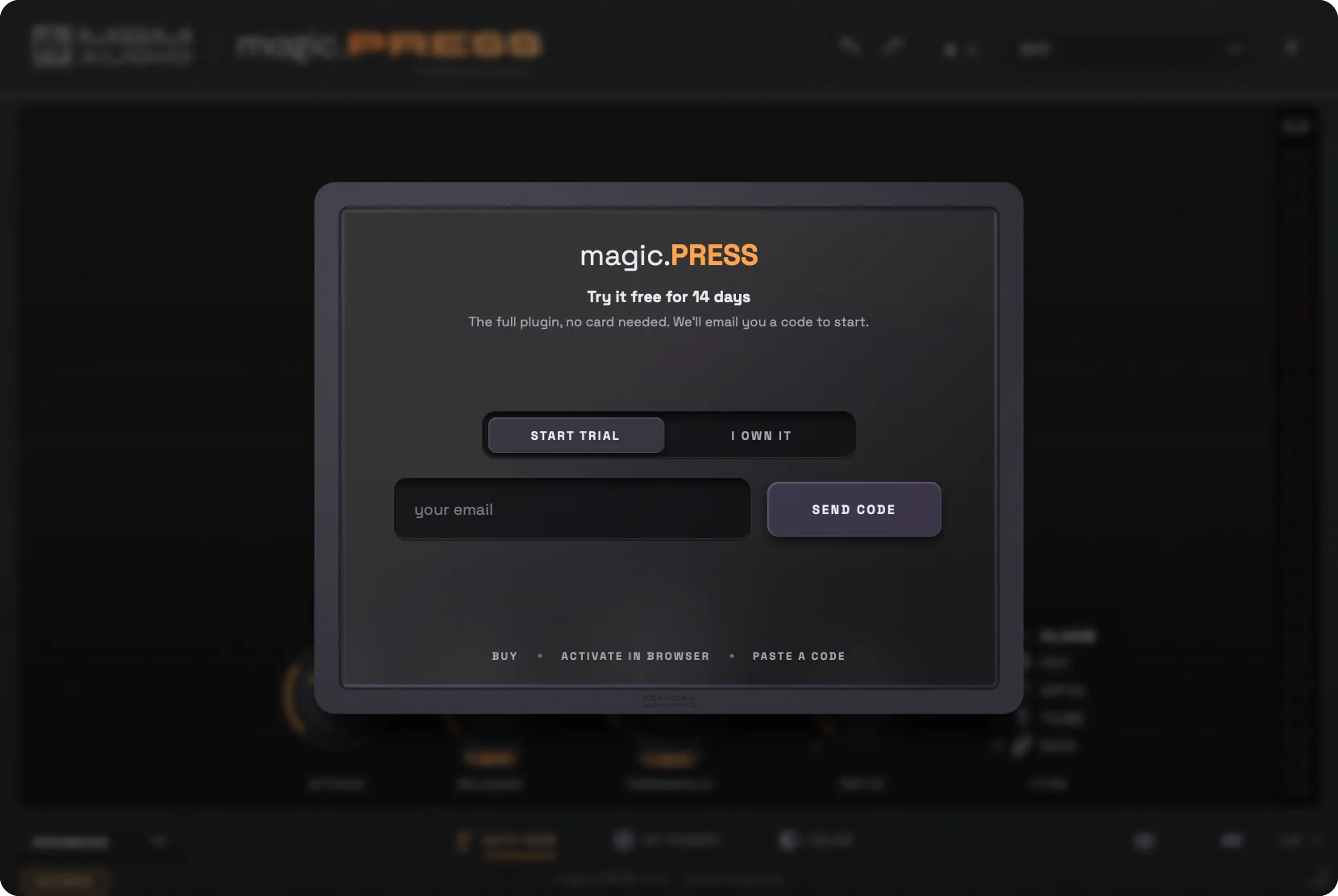
The first time PRESS opens, it asks for your email. Click Send code, enter the 6-digit code we email you, and click Start free trial. Everything works for 14 days, no card needed. The lights under ADVANCED count the days left; click them to buy or activate.
Activate after you buy
Choose I own it, type the email you bought with, and enter the code from your email (it works for an hour). A license covers 3 computers.
No internet on the studio computer? Click Activate in browser, finish on another device, then Paste a code back into PRESS.
Moving to a new computer? Open the license screen on the old one (Manage license in the ? panel) and click Deactivate this computer, then activate on the new one. If you no longer have the old computer, email support.
Offline is fine: once it's activated, a bought copy keeps working without a connection.
When the trial ends, PRESS lets the audio through untouched until you buy or activate, so your sessions still play.
Specs
Compressors
CLEAN, FET, OPTO, TUBE and DUO (any two in a row)
Formats
Mac: AU, VST3 and AAX, Intel and Apple silicon. Windows: VST3 and AAX, 64-bit
Systems
macOS 10.13 or later on Intel, macOS 11 or later on Apple silicon. Windows 10 or later
Sample rates
44.1 kHz to 384 kHz
Channels
Mono, stereo, and mono in to stereo out. Sidechain in mono or stereo
Latency
About 1.5 ms at 44.1 and 48 kHz (70 samples), 0.6 ms at 96 kHz. LOOKAHEAD adds 1 or 2 ms. Your DAW compensates automatically
CPU
About 1% of one core at 48 kHz
Presets
30 factory presets, plus your own
License
3 computers per license, a 14-day free trial, no iLok, no subscription
Questions
Does it only work on vocals?
It's made for vocals and at home on anything. AUTO, HIT POCKET and SNAP are built around a singer, and the pocket comes from hit vocals. On drums, bass or a bus, switch AUTO and HIT POCKET off and set THRESHOLD by hand: then it's a clean, low-distortion compressor like any other.
Why does it barely press my drums or bass?
AUTO is tuned to how a voice moves, so on drums or a bass line it sits back and does very little. Switch AUTO off with the tab under THRESHOLD and set THRESHOLD by hand.
Does HIT POCKET change the sound?
No. HIT POCKET only measures and shows. It never turns a knob. SNAP is the only thing that moves THRESHOLD, and only when you press it.
Why doesn't my vocal get louder when I turn PRESS on?
AUTO GAIN puts back the level PRESS takes, so you hear the compression, not a volume change. Switch AUTO GAIN off (on the bottom bar or inside OUT) if you'd rather set the makeup yourself.
What is the difference between PEAKS and WORDS?
PEAKS is how far the peaks stand over the body of the voice. WORDS is how evenly one word sits next to the next. A vocal can have its peaks in the pocket and still jump from word to word, which is why there are two readings, and why SNAP looks at both.
Why do the readings start over when I press play?
So they always describe what you are hearing now. PEAKS needs about 5 seconds of singing and WORDS a few seconds more. They also start over when you change anything that affects the dynamics.
SNAP says "With AUTO" and offers SNAP FIXED. What does that mean?
AUTO keeps the difference between loud and quiet phrases, because that's its job, so a very dynamic vocal can't fully reach the pocket with AUTO on. SNAP FIXED turns AUTO off and sets one fixed threshold, which presses loud phrases harder than quiet ones and lands it. The AUTO tab brings AUTO back any time.
Can I aim at a different pocket?
Yes. Click the target at the top of the HIT POCKET drawer to aim for the hits of a genre, the #1 hits, an era, a voice type or an artist, and to set how wide the pocket is.
Does it add latency?
About 1.5 ms at 44.1 and 48 kHz, which your DAW compensates for automatically. LOOKAHEAD adds 1 or 2 ms more when you switch it on.
Where are my presets saved?
On Mac in ~/Library/Application Support/MBM Audio/magic.PRESS/User Presets, and on Windows in %APPDATA%\MBM Audio\magic.PRESS. Each preset is one file, so you can copy them to another computer.
Is A/B saved with my session?
Only the slot you are on. When you reopen the session, PRESS starts on A with those settings.
What happens when the trial ends?
PRESS lets the audio through untouched until you buy or activate it, so your sessions still play.
How many computers can I use it on?
Three per license (the trial covers two). To move it, open the license screen on the old computer and click DEACTIVATE THIS COMPUTER, then activate it on the new one. No iLok, no subscription.